
Introduction
In the world of network monitoring, the more information you have, the better, in order to keep your network healthy. Simply pinging a device to check up/down status won’t cut it. To truly understand and determine if a device—like a physical device, virtual device, server, or router—is not just running, but running optimally, you need network probes. Probes help do the heavy lifting to get specific performance information from your devices, so you don’t have to do it manually.
Intermapper comes with over 150 built-in probes to help you monitor nearly all types of network devices. We also offer an extensive free Probes Library with even more probes to choose from, created by network pros using Intermapper. And if you can’t find the specific probe you’re looking for, Intermapper makes it easy for you to create your own probes.
Use this guide to learn everything you need to know about Intermapper probes, from what type of information they can show you, to which ones are most popular. Plus, we’ll show you how to use, create, and troubleshoot probes for your network infrastructure.
Probes 101
What Are Probes?
Probes, sometimes known as sensors, are text files used to poll network devices. Intermapper probes, specifically, are software plugins that gather data and alert you to potential crashes, locate problem devices, and supply diagnostic information. They tell Intermapper how exactly you want them to test a device. The best part of Intermapper probes? They can poll all your devices in mere seconds.
There are only two conditions for monitoring with probes:
1. The device must have an IP address
2. The vendor must allow the device to be probed
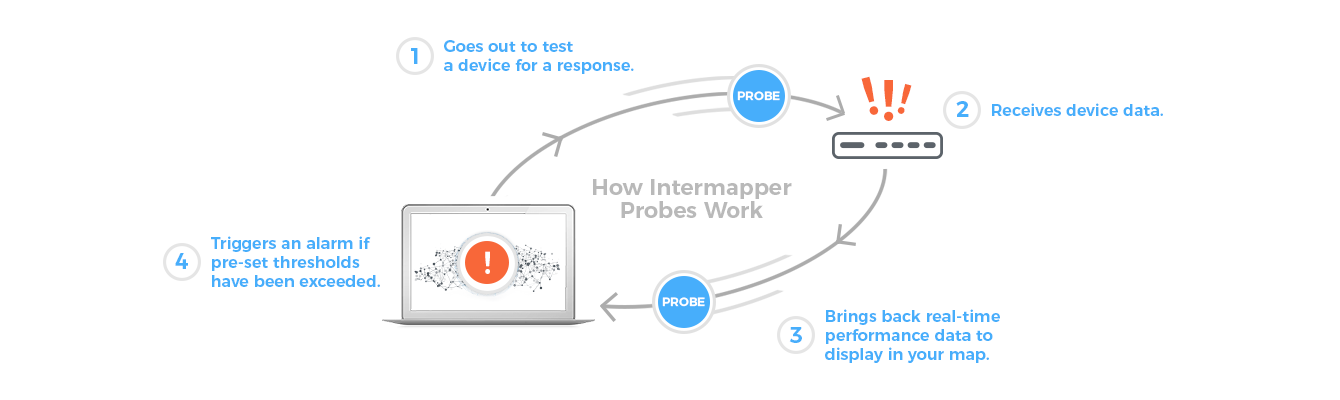
What Devices Can You Monitor with Intermapper Probes?
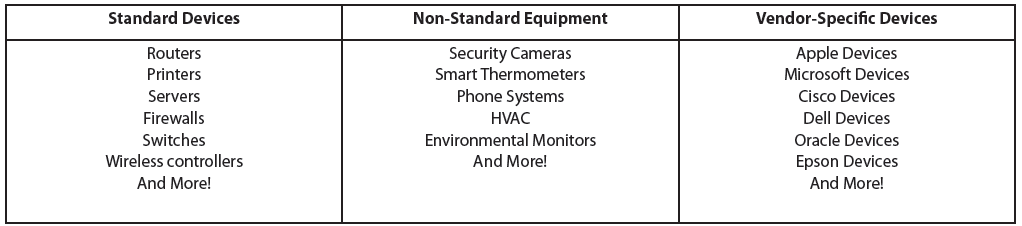
How Do Intermapper Probes Work?
Intermapper’s probes send one or more queries to the device being tested as either an SNMP request, UDP datagram, HTTP, command-line, or over a TCP connection. If the device responds, it sends back the data you requested—anything from if your mail server is working, a disk is getting full, or your printer is out of paper—and sets the status accordingly. If any pre-set performance thresholds have been exceeded, the probe can take action like triggering an alarm. If there’s no response, Intermapper sets the device’s status to DOWN.

What Can Probes Show You?
Once your probe has been properly set up (more on this later), right-click on device or link line, respectively, to open the device or link status window. There you can see the DNS name, IP address of the device, device or link state, current utilization, and any other specific information you asked your probe to monitor like environmental status.
Links in these status windows can be used to open strip charts which will display a running level of the information such as bytes received, utilization percent, sensor readings, and more. Once you create these charts, they’re now a part of your network map and you can leave them open to display, or easily re-open them to quickly check on your devices.
Here’s some of the information you’ll find in the status window:
- Status shows the state of the device as either Up, Down, or Unknown.
Up: The device being tested returns a response to queries, whether the response contains good news or bad news
Down: The device does not return any response
Unknown: The device is in a transitory state, meaning Intermapper hasn't polled the device yet, or it’s set to non-polling and isn't currently being polled
- Severity is a subset of the Up status
Warning: Changes the icon color to yellow, the lowest threshold indicating least serious severity (this is also called Minor if using Alarm Points)
Alarm: Changes the icon color to orange, a higher threshold indicating medium severity (this is also called Major if using Alarm Points)
Critical: Changes the icon to non-flashing red, the highest threshold indicating most serious severity
- Condition String is text that appears as the "Reason" in the status window.
Set as a result of the probe's comparisons of values to thresholds. The text is established and created when probe designers create their probes
Alerts and Notifications
Another benefit of probes is their alerting capabilities. The alerts and notifications eliminate the need to have eyes on the state of your devices 24/7. By setting notifications and alerts that notify you immediately when a device status changes, you can take action when necessary and spend your valuable time on other IT priorities. And there are a variety of notifier types for you to choose from.
When configuring a device on a map, you can indicate that an alert must be sent using a notifier when the device makes a transition to a specific status or severity.
Intermapper Probe Alert and Notification Types:
- SMS/text message
- Syslog message
- Pager
- Sounds
- Running a script
MVPs: Most Valuable Probes
Of the hundreds of Intermapper probes available, these are the probes you need to know. They are the most widely used probes for monitoring your most important network infrastructure assets like switches, routers, firewalls, and more.
Ping Probe
The ping probe is the most basic category of probes. It automatically switches to either ping, echo, or SNMP traffic to ping devices for their up/down status.
SNMP Probes
The basic SNMP traffic probe provides users with information about the device itself, the amount of traffic utilization, errors, discards, response time, and packet loss counts. Intermapper tests the device's status by sending SNMP queries and comparing the results to user-specified thresholds. This is a great general tool for verifying the health of a device and its network interfaces.
The SNMP category includes: Probes for Single OID, Table Viewer, Trap Viewer, High & Low Threshold, High Traffic/PPS/Utilization
Server Probes
Server probes let you monitor devices using DHCP, HTML, mail servers, and more. You can monitor specific classes of servers for available CPU, memory, disk storage, and processes which are a primary concern for IT network admins. Most servers can run SNMP, and if they are, can be monitored using the Servers Standard > Host Resources probe.
The Servers-Standard category includes: Probes for various types of "standard" servers like HTTP, DNS, FTP, Printers, Radius, Telnet, and more
The Servers-Proprietary category includes: Probes for vendor-specific servers
TCP Probes
TCP probes connect to the specified device and port, then execute a script that sends and receives data from the device. Intermapper examines the responses and sets the device’s status and conditions based on the results.
WMI Probe
User desktop systems can be monitored using Windows Management Information (WMI) with proper access and configuration. These probes are used with long polling intervals and big timeout settings, because WMI response time is often on the order of 30 seconds or a minute. Due to the amount of overhead for establishing and maintaining TCP connections, keep in mind that you don’t want too many WMI probes running at the same time.
The WMI category includes: Probes for querying WMI info from a Windows box and is only available on Intermapper servers running on a Windows computer.
Network Device Probes
Network device probes support devices and network gear from multiple specific vendors—like Microsoft, Apple, and Cisco. This set also includes targeted probes for individual equipment models. These come pre-shipped with Intermapper and there are even more user-contributed probes available in the Probes Library to support other vendors.
Wireless Probes
A set of probes targeted at fixed wireless broadband providers (WISPs).
Using Intermapper Probes
There are three great ways to use Intermapper probes—use a pre-built probe, a user-created probe, or create your own probe. Here’s how you can take advantage of each method.
How to Use an Existing Intermapper Probe
The easiest way to get started with Intermapper probes is to use an existing probe—built in your Intermapper install.
With your map open for editing, right-click the device and use Set Info > Set Probe to make the probe selection. Then just simply select the probe you’d like to use for the device. It’s that simple!
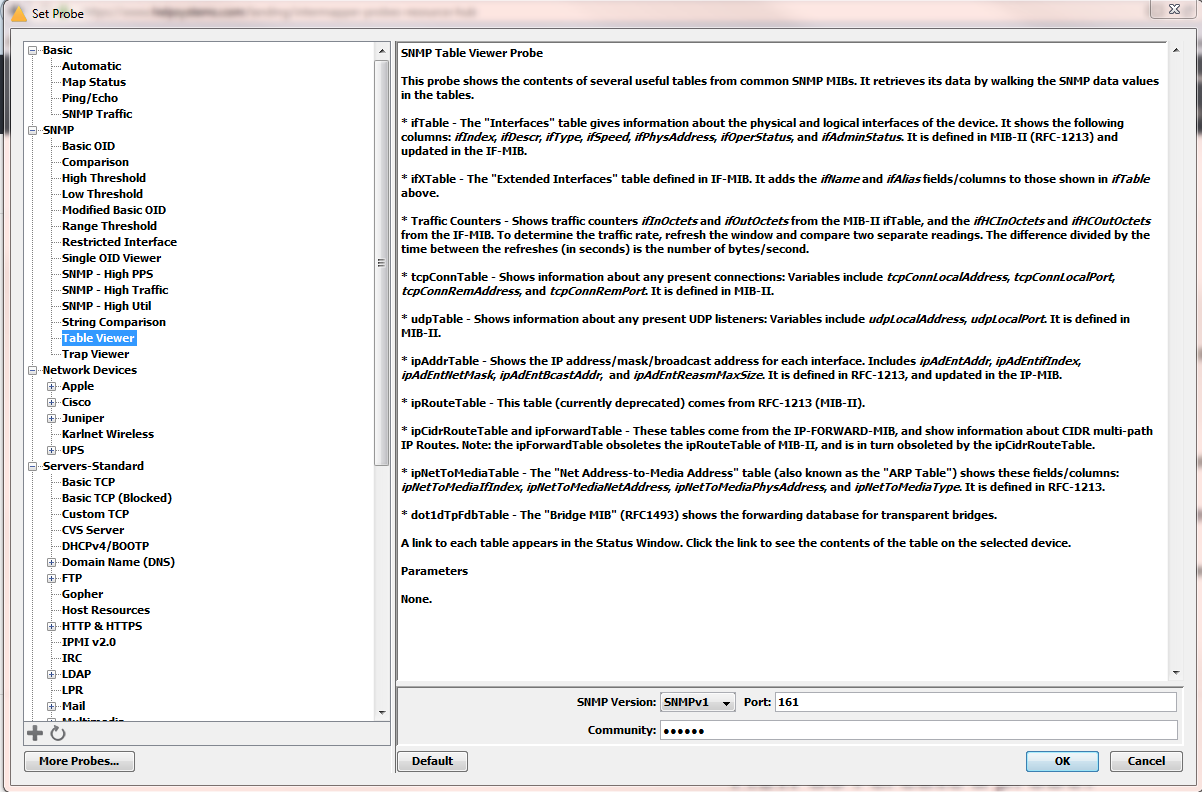
How to Use a Probe from the Intermapper Probes Library
1. Find the probe you need from the Intermapper Probes Library
2. Download and un-compress the file, if necessary
3. Within Intermapper, from the File menu, choose the Import > Probe command
or
Click the Plus icon in the Set Probe window. A file dialog appears. Choose the probe file you want to import and click Open. The probe is then copied and installed to the Intermapper Settings/Probes directory, and becomes available from the Set Probe window
4. Test a custom probe after importing it:
a. Open an Intermapper map
b. Add a new device with the DNS name or IP address of the device you want to test
c. Right-click the device and choose Set Probe… The Select Probe window appears
d. Select the new probe from the Select Probe window
e. Configure the probe by filling in the fields as required
f. When finished, click OK. Intermapper begins using the new probe to test the device
How to Create Your Own Intermapper Probe
As mentioned, Intermapper also provides you with the ability to create your own probes. Before you get started, first answer the following questions. These will help you determine exactly what you’ll need to set up when building out your probe to get the exact information you’re looking for from your devices. Use our handy worksheet to jot down the answers:
Probe Creation Questionnaire
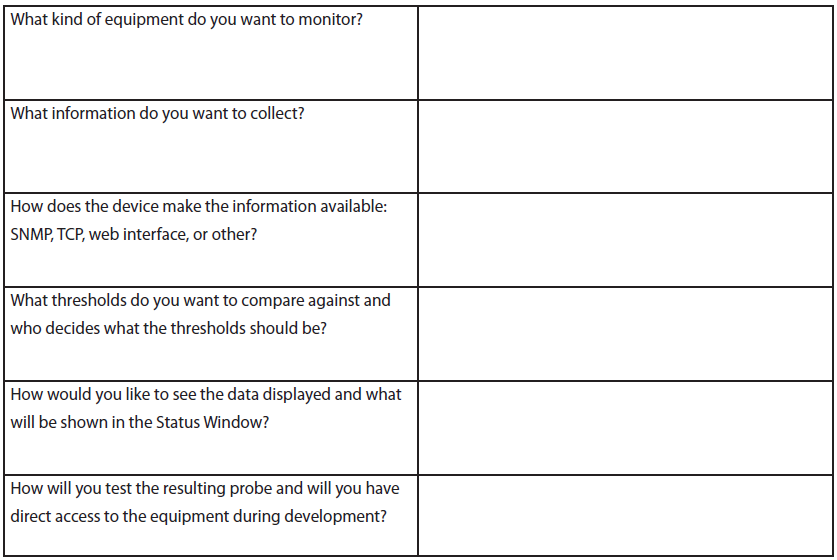
Format of an Intermapper Probe File
As you create probes, it’s important to understand how they are formatted. Every probe in Intermapper has a description and the optional parameters available that can be set to control what you’d like to test each device for. Intermapper probes use an XML-ish format, meaning, they are not real, proper XML files. The sections of a probe file are delimited by <section_name> and </section_name> tags. These tag names are not case-sensitive. Here are all the sections, both required and optional, that make up a probe:
- <description> Section—Optional
Human readable text that describes the probe including its functions, options, output, and more. The description appears in the Set Probe… window and should contain as much information for the user to understand the purpose and operation of the probe.
<description>
This is a sample probe description. You should include information about the
probe's input parameters, what the probe will do, and the
information that will appear in the Status Window.
It can have \b\bold\p\ or \i\italic\p\ or other IMML text styling.
</description>
- <header> Section—Required
Defines several properties of the probe. The property name may optionally be written in quotes and is not case sensitive. Property names include:
- Human Name: shorthand name, shown in Status Window
- Display Name: shows hierarchy in Set Probe... window. Example: "Miscellaneous/Test/Calculation Tester"
- Probe Type: SNMP, Command-line, TCP, etc.
- "Package" (usually a reversed domain name, like "com.dartware") and "Probe_name" (a descriptive name): When combined together with a "." between, these form a unique internal name for the probe
- Assorted Flags and Address Types: See the Developer Guide for details.
- Default Port Number: Customers can change this when setting other probe parameters in the Set Probe... window.
- Version: The format is "#.#" (e.g., "2.1") Intermapper will always use the largest version number
- URL_hint: This gives a URL to launch if the icon for this device is double-clicked
- old_protocol and old_script: These are deprecated and are ignored but may be found in some probes.
- <parameter> Section—Optional
These can be set by the user and are values for the probe to use as parameters or thresholds. These have the following form:
- "variable_name" = "default_value" where variable_name is the name of the variable, and default_value is a user-settable value
- "variable_name" can be referred to as $variable_name or ${variable_name} within the probe. Use the latter format (with "{ ... }") if variable_name has spaces
- "variable_name*" is treated as a password; typed characters appear as bullets
- "variable_name[Choice1,Choice2,Choice3]" = "Choice3" is a dropdown. The items in the dropdown would be Choice1, Choice2, and Choice3
- "variable_name[true,false]" = "false" is shown as a checkbox
- <display_> Section—Optional
The contents of this section serve as a template. Variables are filled in with their values and the contents are marked up in Intermapper Markup Language, also known as IMML (more on this later). Here are the different names for the different probe types:
- <snmp-device-display> for SNMP probes
- <script-output> for TCP probes
- <command-display> for Command-line probes
Example:
- <snmp-device-display>
- \B5\RFC1213-MIB Viewer\P0\
- \4\ sysDescr:\0\ $sysDescr_ \3G\sysDescr\M0\
- ...
- \b5\Tables from RFC1213-MIB\P0\
- ${ifTable:View the ifTable}
- </snmp-device-display>
In the example above, the value of the variable $sysDescr_ was expanded into the template; the ${ifTable:...} macro became a link that, if clicked, opens the on-demand table. The assorted IMML markup in "\...\" changes the styling, color and font of the text.
- <autorecord> Section—Optional
When Intermapper reports to the Intermapper database, it can automatically record certain datasets into the database even if they are not being charted. Including entries in an <autorecord> section causes the named variable’s values to be sent automatically in the database.
Example:
- <autorecord>
- $var1, 'label1', "Legend 1"
- $var2, 'label2', "Legend 2"
- </autorecord>
- Other Characteristics of a Probe File:
Comments
- Comments can be made in either a single line, where “--” on a line is ignored, or in a multi-line HTML-style:
- <!--
- This is a multi-line comment
- -->
Intermapper Markup Language (IMML)
- IMML is a set of formatting markup commands that can be applied to text in Status Window Display sections, probe descriptions, chart legends, condition strings, and other places.
- Markup commands are placed between matching backslashes
- “\b\” for bold text
- “\p\” for plain text
For more detailed information, consult the Intermapper Developer Guide.
Interactive SNMP Probe Builder
To make it even easier for you to create your own Intermapper SNMP Probe, we’ve created the Interactive Probe Builder. This tool walks you through everything you need to build your own SNMP probe and then automatically updates a probe file to create a valid Intermapper Probe.
How to Reload a Probe
If you make changes to a probe, you need to do one of two things before the changes become active:
- Re-import the probe as described in the How to Use a Probe from the Intermapper Probes Library section. You can do this regardless of the probe file location
- Manually reload the probe. If you make a change to the probe file located in the Intermapper Settings/Probes directory, you must click the Reload Probes button to activate your changes
Troubleshooting Probes
Seeing unexpected results from a custom-made Intermapper probe? Here are some common problems you might face, and most importantly, how to troubleshoot and resolve the problem.
“Undefined variable” in Debug Log
Intermapper will not evaluate an expression if it detects a variable that is not defined. This means that the variable is not in the symbol table which could happen for a couple reasons:
- There is a typo in the variable name
- The value for the variable was not returned in an SNMP response
- The value was not set earlier in the probe processing
Intermapper will emit the following message in the debug log file:
Calculation error in rule (probe: com.dartware.example, expression:
"($oid 0)"): Undefined variable: '$oid'
If you have a legitimate case to use an undefined variable, prevent this error message by using the “defined()” function in the expression:
warning: defined("oid") && ($oid> 0) "Warning condition string"
Device Shows “Reason: No SNMP Response.” In Status Window
There are several reasons Intermapper might not be able to retrieve SNMP information from a device. The two most common are:
- The device doesn’t speak SNMP
- You haven’t entered the proper SNMP read-only community string
For the full list of possible error reasons, see About SNMP, in the Troubleshooting section of the Intermapper User Guide.
Status Window Shows “[N/A]” for Certain Values
This error could mean that there is an error with the OID for one of the device variables. Open the debug window, and look for entries in this format:
12:57:00 router.example.net.: SNMP error status [[query = 28]] noSuchName (2), index = 3
1) 1.3.6.1.2.1.1.3: NULL
2) 1.3.6.1.2.1.1.1: NULL
3) 1.3.6.1.7.1.1.4: NULL
4) 1.3.6.1.2.1.1.6: NULL
Note that the first line above shows a “noSuchName” error for index 3. Look at the subsequent lines to find item 3, and check that OID very carefully. In this example, the proper OID should have a “2” in place of the “7” that’s there.
Status Window Shows “[noSuchName]” for Certain Values
This error could mean that there is an error with the OID for one of the device variables. Open the debug window, and look for entries in this format:
13:17:59 OID Error: GetNextRequest from 192.168.1.1 expected 1.3.6.1.2.1.2.2.1.2.10; got 1.3.6.1.2.1.2.2.1.3.1
In this case, the desired value is from a non-existent table row. (The OID 1.3.6.1.2.1.2.2.1.2 is the ifDescr for an interface on a device. The index (.10) indicates which row to retrieve. But when Intermapper requested that row, it learned it was not present.) Consequently, Intermapper displays the "noSuchName" value.
For even more troubleshooting help, see the Intermapper Developer Guide.
Conclusion
Now that you know everything from the benefits of probes to how to use them, it’s time to put them in action. When you take advantage of Intermapper probes, you get an even bigger view of what’s happening on your network. What device data are you looking to discover?
For even more detailed information and guidance on probes and Intermapper in general, check out these additional resources:
- The Intermapper User Guide
- The Intermapper Developer Guide
- Intermapper Probes Knowledge Base
- The Intermapper Probes Library
- Interactive SNMP Probe Builder
- The Intermapper Quick Start Guide
Have a specific question you need answered? Feel free to contact [email protected] with any questions.